Assign Number Ranges to Customer Account Groups

Assign Number Ranges to Customer Account Groups 

Path: SPRO - Select SAP Reference IMG - Financial Accounting - Accounts Receivable and Accounts Payable- Customer Accounts - Master Data - Preparation for Creating Customer Master Data -Assign Number Ranges to Customer Account Groups (Transaction code is OBAS)


Select the menu path


Step 1) Select position button


Step 2) Give account group and press enter


Step 3) Select the Number range defined previously from the drop down menu for account groups


Step 4) Select save button    we get message below


Display Customer Account Transaction

Displaying Customer Account Transaction (Use t.code FBL5N)


Give Customer account and Company code
Select Cleared items radio button and give the clearing date
Select Normal items check box along with Vendor items
Execute


Here we can see the Vendor and Customer items cleared
Double click on any document to display the document details


Incoming Payment

Incoming Payment

Path: Accounting - Financial Accounting - Accounts Receivable - Document Entry - Incoming Payments (Transaction code is F-28)


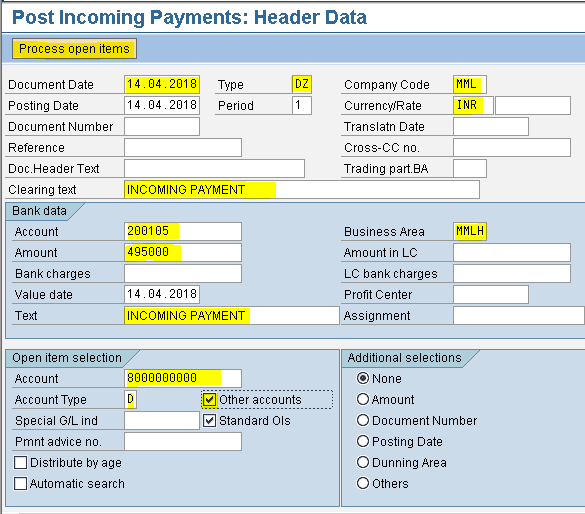
Step 1) Populate the following fields: Document Date, Type, Company Code, Currency, Clearing text, Account, Business Area, Amount, Text under Bank data, Account and Account type under Open item selection
Select Other accounts check box
Select Process open items


Step 2) Select Vendor account from the drop down menu
Select Account type from drop down menu
Select Company code form the drop down menu
Select Standard open items check box
Select Continue button


Step 3) Double click payment to be received 500000/-
Double click payment to be paid 5000/-
Amount entered and assigned should be the same


Note: Customer is liable to pay us 500000/- but at the same time he is our vendor also and the company should pay 5000/- for the goods purchased. Therefore we receive only 495000/- form the customer adjusting the vendor payment.

Step 4) From the menu select Document - Simulate to view document details


Note:
40 - Debit entry
15 - Customer credit 
28 - Vendor debit
Step 5) Select save buttonwe get message below


Create Number Ranges for Customer Accounts

Create Number Ranges for Customer Accounts

Path: SPRO - Select SAP Reference IMG - Financial Accounting - Accounts Receivable and Accounts Payable - Customer Accounts - Master Data - Preparations for Creating Customer Master Data - Create Number Ranges for Customer Accounts (Customers) (Transaction code is XDN1)


Select the menu path


Step 1) Select change intervals button


Step 2) Select insert interval button


Step 3) Populate the fields: Number range, From number and To number
Press enter


Step 4) Select insert interval button once again
Populate the fields: Number range, From number and To number
Press enter


Step 5) Select save button  we get message below

Creation of 2 G/L Masters

Creating 2 G/L Masters (Use t.code FS00)


1. Sundry Debtors Account - Under Current assets account group 

Step 1) Give the G/L account number, company code and press With Template button in order to create a new G/L account with reference to another G/L account


Step 2) Enter the G/L we created previously (Advance to vendors) and company code
Press enter


Step 3) Change the short and long text
Select Control Data tab


Step 4) Reconciliation account for account type select Customers
Sort key select 031 (customer number) from drop down


Step 6) Select save buttonwe get message below


2. Sales Account - Under Sales account group 

Step 1) Give the G/L account number, company code and press With Template button in order to create a new G/L account with reference to another G/L account


Step 2) Enter the G/L we created previously (Exchange gain) and Company code
Press enter


Step 3) Change Account Group to sales
Change Short and Long Text


Step 4) Select save button we get message below


Introduction to Accounts receivable in SAP

SAP FI Accounts Receivable is used to record the accounting data for all the Customers/Buyers. The company has a right to receive payment from the customers for service rendered. When goods are sold to customers, the customers are liable to pay the company for the product delivered. Accounts receivable is essential part of sales management.

This is also Sub Ledger (Subsidiary Ledger). This is used when Sales & Distribution (SD) module is not implemented for all types of sales.
Example: Product sale, Asset sale and Scrap sale
When SD module is implemented accounts receivable is used for scrap sale and asset sale other than product sale. For product sale SD module will be used.

Basic settings for Accounts Receivable

1. Creation of Customer Account Groups

2. Create Number Ranges for Customer Accounts

3. Assign Number Ranges to Customer Account Groups

4. Creation of 2 GL Masters

5. Creation of Customer Master

6. Document Types and Number Ranges

End User Area

1. Sales Invoice Posting

2. How to View Customer Account Transactions
3. Incoming Payment

4. Display Customer Account Transactions

How to View Customer Account Transaction

How to View Customer Account Transaction

Path: Accounting - Financial Accounting - Account Receivable - Account - Display/Change Line Items (Transaction code is FBL5N)


Step 1) Give Customer account number and Company code
Select Open items radio button
Select Normal items check box
Execute


Customer Open items display


To view the Customer and Vendor Transactions together
Select back arrow
Select vendor items check box along with normal items
Execute

Customer and Vendor Open items display


Sales Invoice Posting

Sales Invoice Posting

Path: Accounting - Financial Accounting - Accounts Receivable - Document Entry - Invoice - General (Transaction code is F-22)


Step 1) Populate the following fields: Document Date, Type, Company Code, Posting Date, Period, Currency and Posting key. Select the Customer from the drop down button and press enter


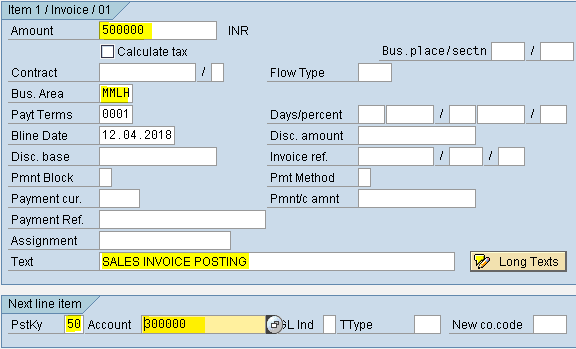
Step 2) Populate the following fields: Amount, Business Area, Text, Posting key and Account in the next screen and press enter


Step 3) Populate the following fields: Amount, Business Area and Text in the next screen


Step 4) From the menu select document and press simulate to view the document details
Select the save button


we get a message below